Custom settings: address and phone in one place
The studio’s phone number is needed in the footer, on the contact page and next to the measuring visit form. We’ll enter it once in the settings, and templates and page texts will take it from there.
One value for the whole site
A phone number rarely changes, but when it does, it has to change everywhere at once. If it’s written in five places, one of them will be forgotten, and customers will call the old number. That’s why values like this live in one place, and every other place refers to it.
Add the settings
Open Settings → Custom settings and click Add key. Add three settings:
phone: “+353 1 555 0123”;address: “12 Mill Lane, Dublin”;hours: “Showroom open daily, 10:00 to 20:00”.
Write the key in Latin letters: templates find the value by it. Changes in the table are saved right away.
In the footer
Replace the code of the Footer component:
<!-- @component
Footer: name, address, phone, showroom hours and year. The contact details come from the site’s custom settings.
-->
<script>
  import { site } from '$core';

  let {
    /** Line next to the name */
    note = 'kitchens made to order',
  } = $props();

  const { name, custom } = site();
  const tel = custom.phone.replace(/[^+\d]/g, '');
  const year = new Date().getFullYear();
</script>

<footer class="footer">
  <p><b>{name}</b> · {note}</p>
  <p>{custom.address} · <a href={`tel:${tel}`}>{custom.phone}</a></p>
  <p>{custom.hours}</p>
  <p>© {year}</p>
</footer>

<style>
  .footer {
    max-width: 48rem;
    margin: 0 auto;
    padding: 1.5rem;
    color: #6b6862;
    font-size: 0.9rem;
  }

  .footer p {
    margin: 0.25rem 0;
  }

  .footer a {
    color: inherit;
  }
</style>
const { name, custom } = site();: takes the name and the custom settings from the site settings.customholds everything you added on the Custom settings tab, by key.custom.phone.replace(/[^+\d]/g, ''): turns “+353 1 555 0123” into “+35315550123”. Atel:link understands a number in this form: on a phone, tapping it starts a call.
In the page text
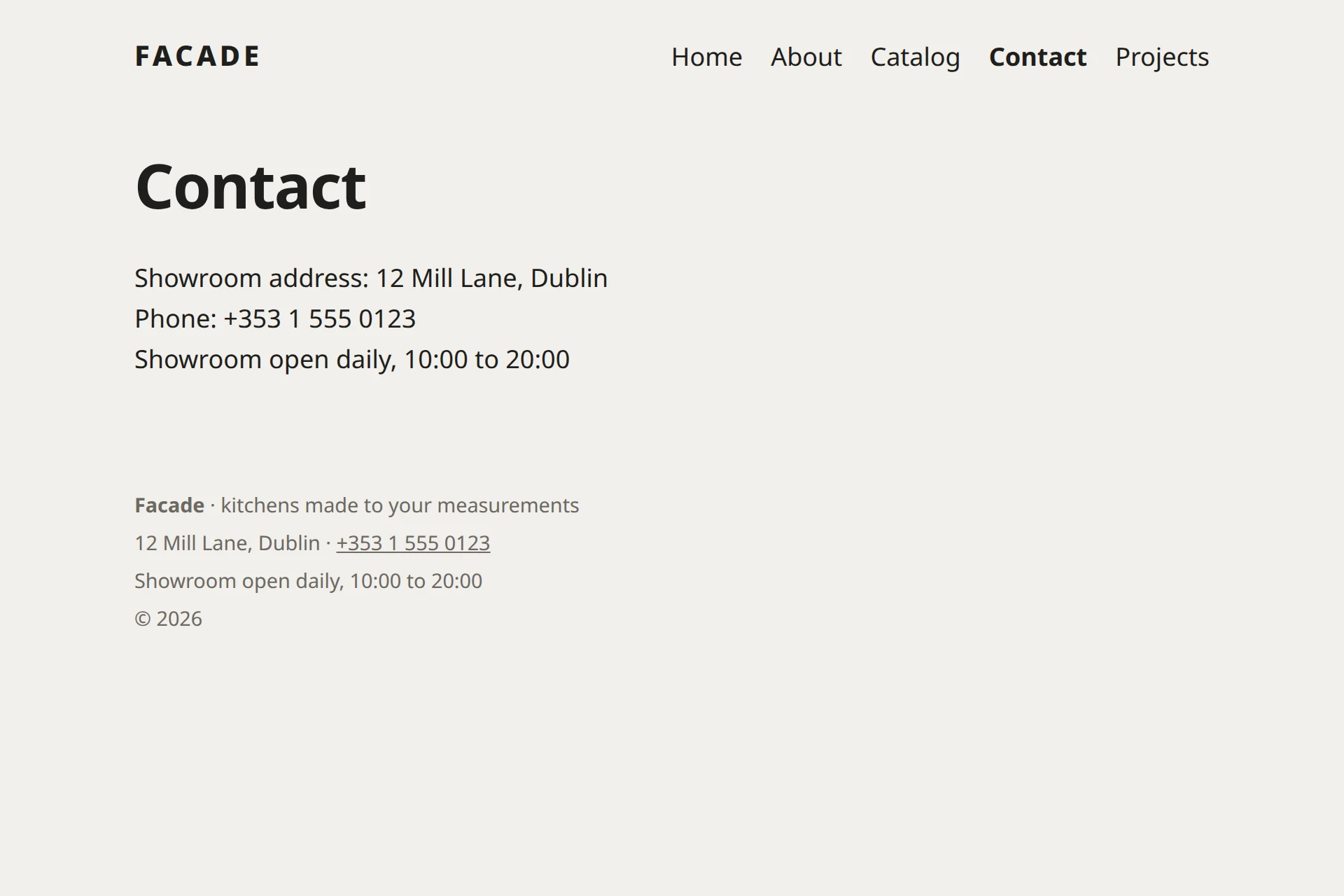
In a template you get settings through site().custom, and page text has a shorthand for it: the key in square brackets after an at sign. Open Contact and write:
Showroom address: [@address]
Phone: [@phone]
[@hours]
On the site, [@phone] turns into the number. Change the number in the settings, and it changes both here and in the footer.