Lists: catalog, projects and the home page
Catalog will build the kitchen cards with prices on its own, Projects will show the studio’s work five to a page, and the home page will become the studio’s shop window, with kitchens and recent projects.
Kitchen cards
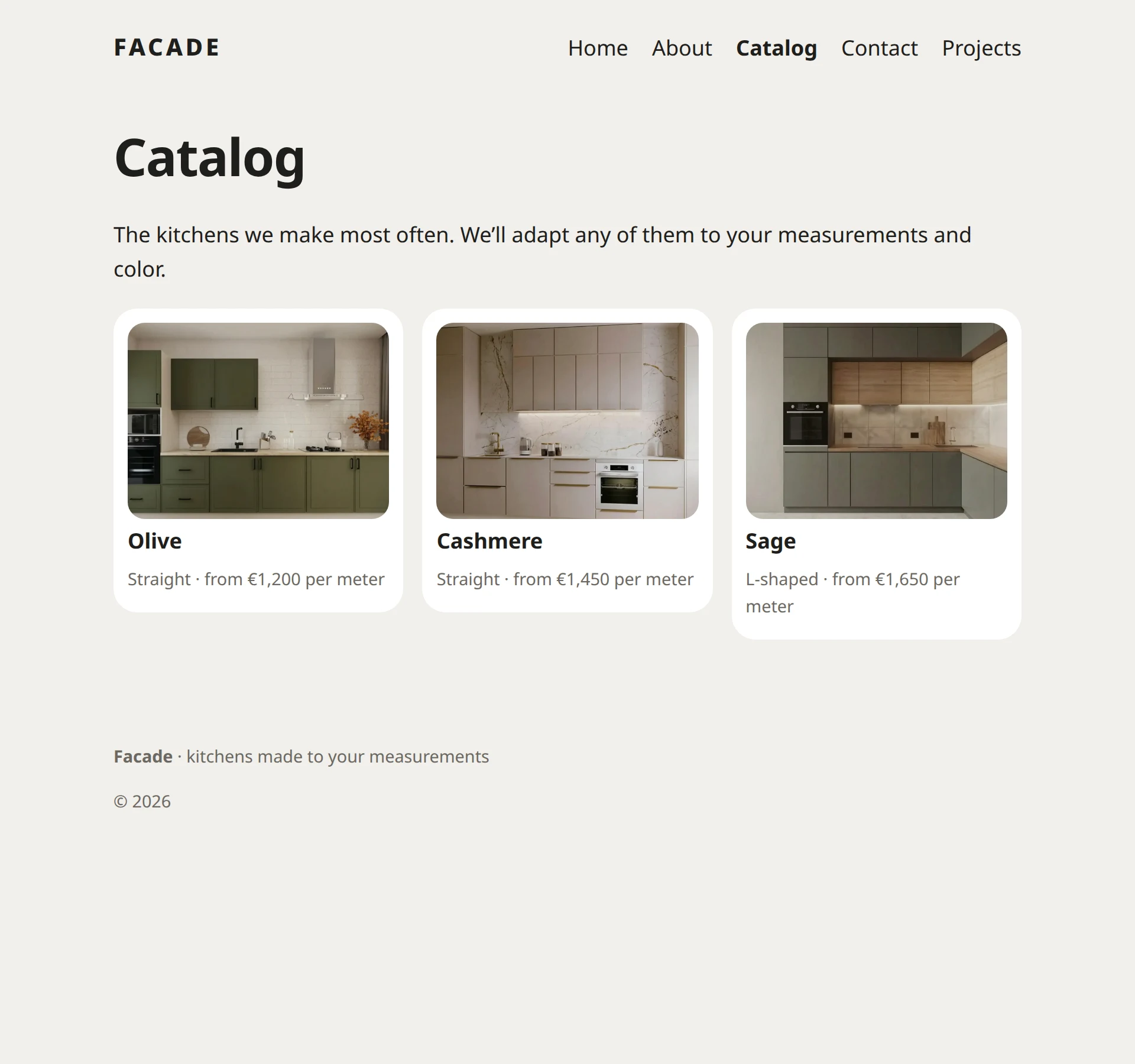
The kitchens live inside Catalog. So the template of the Catalog page needs to take the page’s children and draw a card for each one. Create a template named Catalog:
<script>
  import Content from '$core/Content';
  import Layout from '$components/Layout';
  import { children, image, link } from '$core';

  let { page } = $props();

  const kitchens = children(page.id);
  const eur = new Intl.NumberFormat('en', {
    style: 'currency',
    currency: 'EUR',
    maximumFractionDigits: 0,
  });
</script>

<Layout {page}>
  <h1>{page.title}</h1>
  <Content of={page} />

  <ul class="cards">
    {#each kitchens as kitchen (kitchen.id)}
      {@const photo = kitchen.fields.photo ? image(kitchen.fields.photo) : null}
      <li>
        <a href={link(kitchen.id)}>
          {#if photo}
            <img src={photo.src} width={photo.width} height={photo.height} alt="" />
          {/if}
          <span class="name">{kitchen.title}</span>
          <span class="meta">
            {kitchen.fields.plan} · from {eur.format(kitchen.fields.price)} per meter
          </span>
        </a>
      </li>
    {/each}
  </ul>
</Layout>

<style>
  .cards {
    display: grid;
    grid-template-columns: repeat(auto-fill, minmax(13rem, 1fr));
    gap: 1rem;
    padding: 0;
    list-style: none;
  }

  .cards a {
    display: grid;
    gap: 0.35rem;
    padding: 0.75rem 0.75rem 1rem;
    border-radius: 1.25rem;
    background: #fff;
    color: inherit;
    text-decoration: none;
  }

  .cards img {
    aspect-ratio: 4 / 3;
    object-fit: cover;
    border-radius: 0.9rem;
  }

  .name {
    font-weight: 700;
  }

  .meta {
    color: #6b6862;
    font-size: 0.9rem;
  }
</style>children(page.id): the children of the current page, in tree order. In chapter five we calledchildren(null)for the top level; this is the same function.kitchen.fields.price: every page in the list has its own fields, just likepagein the kitchen template.{@const photo = …}: creates a value right inside{#each}, a separate one for each kitchen.aspect-ratio: 4 / 3andobject-fit: cover: all the card photos are the same height, even if the shots have different proportions.grid-template-columns: repeat(auto-fill, minmax(13rem, 1fr)): the cards line up in as many columns as will fit. That’s one on a phone and three on a laptop.
Open the Catalog page in the manager, choose the Catalog template for it and save. The cards follow the order of the tree: drag the kitchens to change it.
The projects section
Create a top-level page called “Projects” (address projects), and three pieces of work inside it. For each one, fill in the Summary field: one or two sentences that will appear in the list. Leave the projects on the Base template.
For the pager, meaning the “Previous” and “Next” links between pages of the list, we’ll use a ready-made component. Click the Elements icon in the header, open the Component kit tab and click Install next to the Pagination component. It appears among the site’s components, and you can edit it like one of your own.
Now the Projects template:
<script>
  import Layout from '$components/Layout';
  import Pagination from '$components/Pagination';
  import { link, listing } from '$core';

  let { page } = $props();

  const projects = listing(page.id, { perPage: 5 });
  const date = new Intl.DateTimeFormat('en', {
    dateStyle: 'long',
    timeZone: 'UTC',
  });
</script>

<Layout {page}>
  <h1>{page.title}</h1>

  {#each projects.items as project (project.id)}
    <article class="project">
      <h2><a href={link(project.id)}>{project.title}</a></h2>
      <p class="date">{date.format(new Date(project.publishedAt))}</p>
      {#if project.introText}<p>{project.introText}</p>{/if}
    </article>
  {:else}
    <p>No projects yet.</p>
  {/each}

  <Pagination
    items={projects.pager()}
    prev={projects.url(projects.number - 1)}
    next={projects.url(projects.number + 1)}
    label="Pages"
    prevLabel="Previous"
    nextLabel="Next"
  />
</Layout>

<style>
  .project {
    padding: 1.25rem 0;
    border-bottom: 1px solid #e2dfd9;
  }

  .project h2 {
    margin: 0;
    font-size: 1.375rem;
  }

  .project a {
    color: inherit;
  }

  .date {
    margin: 0.25rem 0 0;
    color: #6b6862;
    font-size: 0.9rem;
  }
</style>
listing(page.id, { perPage: 5 }): the child pages in batches of five, newest first. The most recently published project ends up on top.projects.items: the projects in the current batch. On the second page of the list, that’s projects six through ten.{:else}inside{#each}: what to show if the list is empty.projects.pager(),projects.url(…): the page numbers of the list and the addresses of the neighboring pages. The Pagination component draws a pager from them, and draws nothing when there is only one page.label,prevLabel,nextLabel: the pager’s wording, that is, its name for screen readers and the text of the two links.
Choose the Projects template for the Projects page. Once there are more than five projects, the second batch opens at /projects/page-2: Eile understands addresses like that by itself.
The home page as a shop window
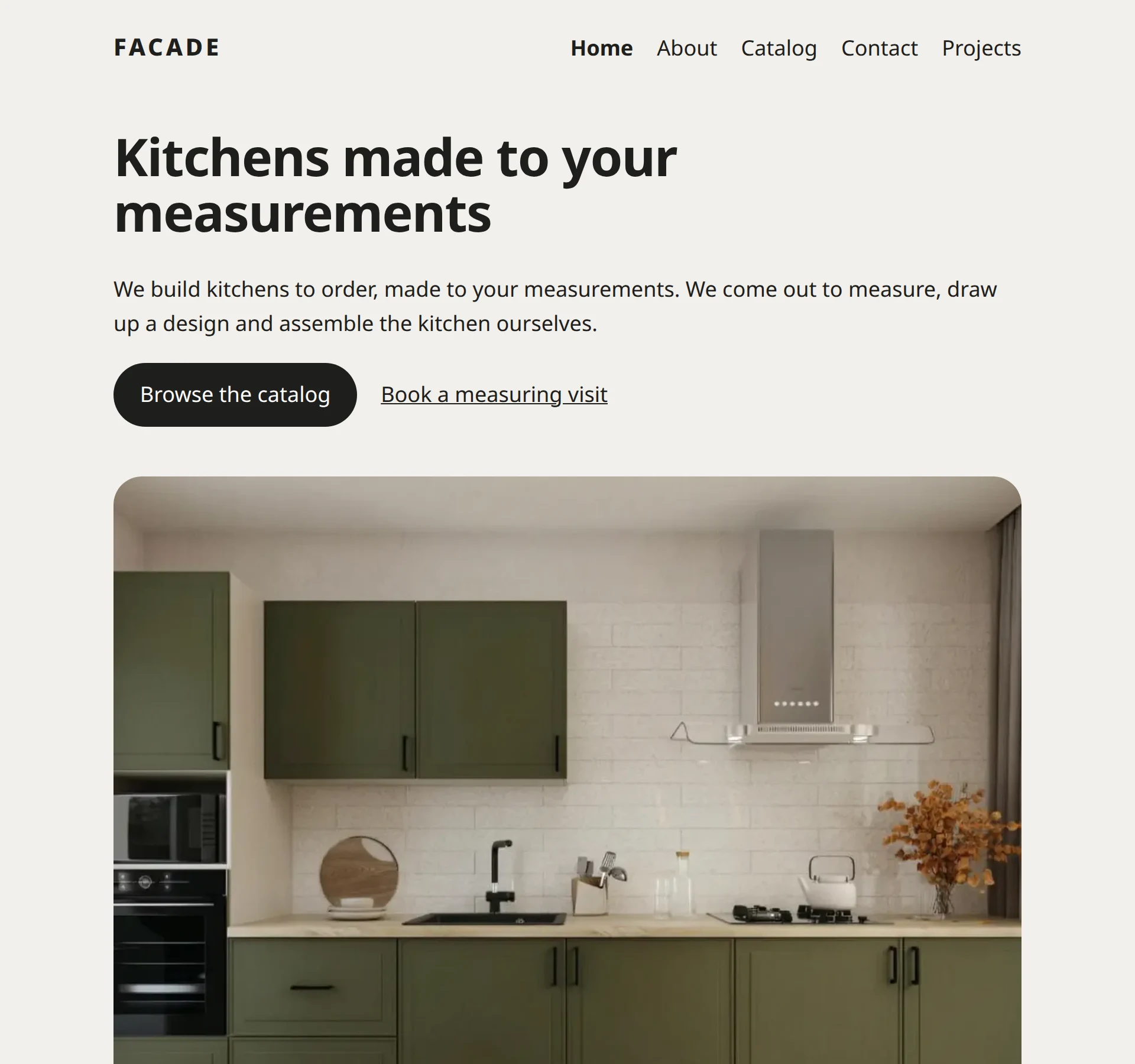
A list can also come from another section. The home page will show a large heading, a button to the catalog, a big photo, three kitchens with prices and two recent projects. Create a template named Home:
<script>
  import Content from '$core/Content';
  import Layout from '$components/Layout';
  import { children, image, link, listing } from '$core';

  let { page } = $props();

  // Sections are found by address, so the template needs no page numbers.
  const top = children(null);
  const catalog = top.find((_) => _.path === '/catalog');
  const projects = top.find((_) => _.path === '/projects');
  const contacts = top.find((_) => _.path === '/contact');

  const kitchens = catalog ? children(catalog.id).slice(0, 3) : [];
  const fresh = projects
    ? listing(projects.id, { perPage: 2, paged: false }).items
    : [];
  const cover = kitchens[0]?.fields.photo ? image(kitchens[0].fields.photo) : null;
  const eur = new Intl.NumberFormat('en', {
    style: 'currency',
    currency: 'EUR',
    maximumFractionDigits: 0,
  });
</script>

<Layout {page}>
  <section class="hero">
    <h1>{page.longTitle || page.title}</h1>
    <Content of={page} />
    <p class="actions">
      {#if catalog}<a class="button" href={link(catalog.id)}>Browse the catalog</a>{/if}
      {#if contacts}<a href={link(contacts.id)}>Book a measuring visit</a>{/if}
    </p>
    {#if cover}
      <img
        src={cover.src}
        srcset={cover.srcset}
        sizes="(min-width: 48rem) 45rem, 100vw"
        width={cover.width}
        height={cover.height}
        alt={cover.alt}
      />
    {/if}
  </section>

  {#if kitchens.length}
    <h2>From the catalog</h2>
    <ul class="kitchens">
      {#each kitchens as kitchen (kitchen.id)}
        <li>
          <a href={link(kitchen.id)}>{kitchen.title}</a>
          <span>from {eur.format(kitchen.fields.price)} per meter</span>
        </li>
      {/each}
    </ul>
  {/if}

  {#if fresh.length}
    <h2>Finished projects</h2>
    {#each fresh as project (project.id)}
      <p class="project"><a href={link(project.id)}>{project.title}</a></p>
    {/each}
  {/if}
</Layout>

<style>
  .hero img {
    margin-top: 1.5rem;
    border-radius: 1.5rem;
  }

  .actions {
    display: flex;
    flex-wrap: wrap;
    align-items: center;
    gap: 1.25rem;
  }

  .button {
    padding: 0.8rem 1.4rem;
    border-radius: 999px;
    background: #1f1e1c;
    color: #fff;
    text-decoration: none;
  }

  .actions a:not(.button) {
    color: inherit;
  }

  .kitchens {
    display: grid;
    gap: 0.5rem;
    padding: 0;
    list-style: none;
  }

  .kitchens li {
    display: flex;
    flex-wrap: wrap;
    justify-content: space-between;
    gap: 0.25rem 1rem;
    padding: 0.9rem 1.1rem;
    border-radius: 1rem;
    background: #fff;
  }

  .kitchens span {
    color: #6b6862;
  }

  .kitchens a,
  .project a {
    color: inherit;
  }
</style>
top.find((_) => _.path === '/catalog'): among the top-level pages, finds the one whose address is/catalog. The_sign here is just a name for “the page being checked”.children(catalog.id).slice(0, 3): the first three kitchens from Catalog. Change the order in the tree, and these change too.listing(projects.id, { perPage: 2, paged: false }): two recent projects.paged: falsesays this list isn’t split into pages, so the home page won’t get addresses like/page-2.kitchens[0]?.fields.photo: the first kitchen’s photo, for the cover. The?.sign keeps the template from crashing if the catalog has no kitchens yet.
Choose the Home template for the home page. The large heading comes from the Long title field on the Search and social tab: type “Kitchens made to your measurements” there. It also goes into the browser tab title, while the site menu keeps the short “Home”.