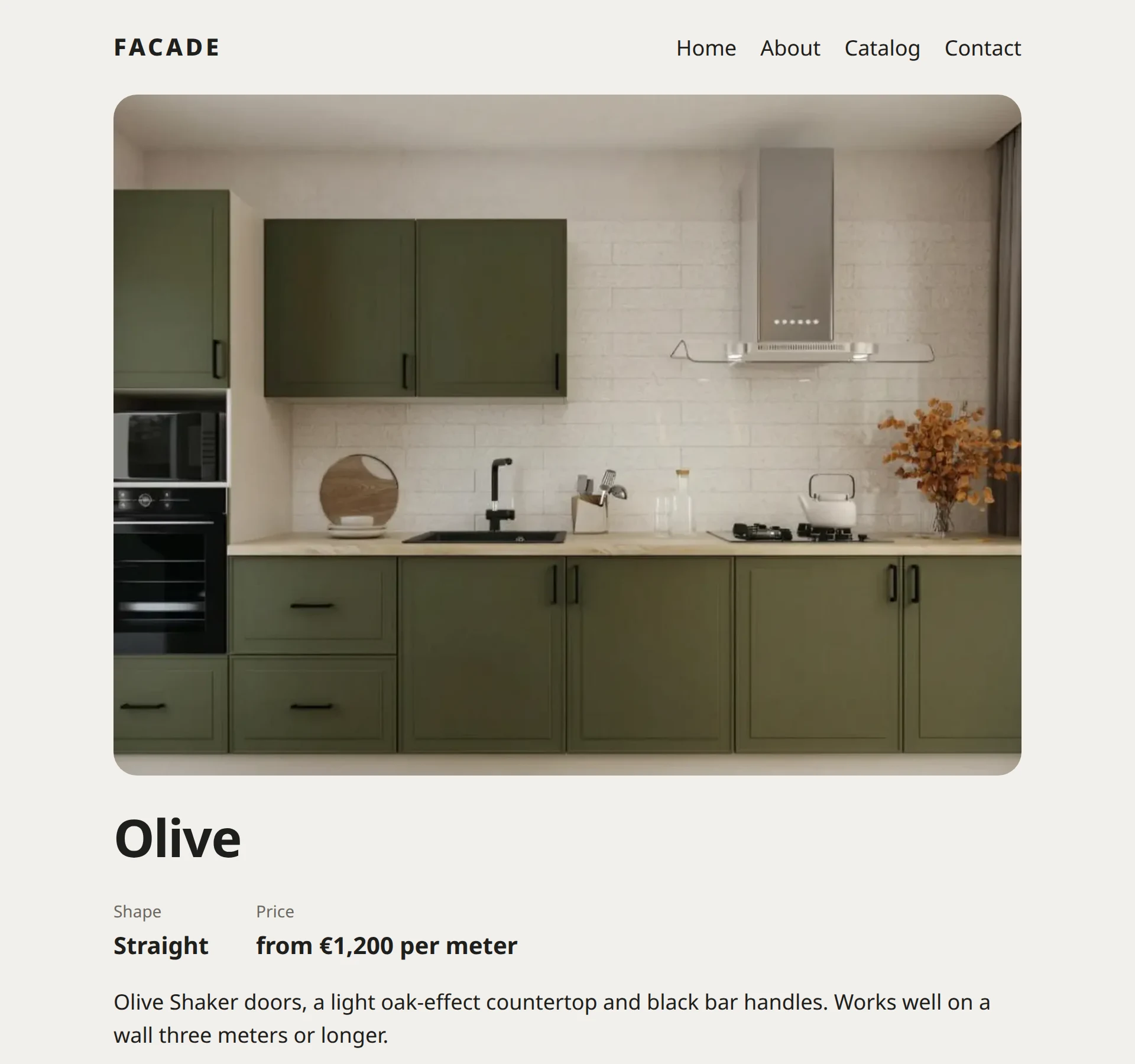
Fields: price, shape and photo of a kitchen
A kitchen has a price per meter, a shape and a photo. Writing them into the text is awkward: you can’t sort by price or change it in one place. For data like this, pages have fields.
Why fields get their own place
You could write the price right into the text: “Olive, €1,200 per meter”. But then the template doesn’t know where in the text the price is. It can’t show the price in large type, list it in the catalog or work out the cost of a kitchen three meters long.
A field holds one value of a particular kind: a number, a line of text, a date, an option from a list, an image. The template knows the field’s name and shows it where it’s needed.
The kitchen template
We start with the template, because a field is attached to templates. Create a template named Kitchen:
<script>
  import Content from '$core/Content';
  import Layout from '$components/Layout';
  import { image } from '$core';

  let { page } = $props();

  const price = page.fields.price;
  const plan = page.fields.plan;
  const photo = page.fields.photo ? image(page.fields.photo) : null;
  const eur = new Intl.NumberFormat('en', {
    style: 'currency',
    currency: 'EUR',
    maximumFractionDigits: 0,
  });
</script>

<Layout {page}>
  {#if photo}
    <img
      class="photo"
      src={photo.src}
      srcset={photo.srcset}
      sizes="(min-width: 48rem) 45rem, 100vw"
      width={photo.width}
      height={photo.height}
      alt={photo.alt}
    />
  {/if}

  <h1>{page.title}</h1>

  <dl class="facts">
    {#if plan}
      <div><dt>Shape</dt><dd>{plan}</dd></div>
    {/if}
    {#if price}
      <div><dt>Price</dt><dd>from {eur.format(price)} per meter</dd></div>
    {/if}
  </dl>

  <Content of={page} />
</Layout>

<style>
  .photo {
    display: block;
    border-radius: 1.25rem;
  }

  .facts {
    display: flex;
    flex-wrap: wrap;
    gap: 0.75rem 2.5rem;
    margin: 0;
  }

  dt {
    color: #6b6862;
    font-size: 0.875rem;
  }

  dd {
    margin: 0;
    font-size: 1.25rem;
    font-weight: 650;
  }
</style>page.fields.price: the value of the field namedprice. The same goes forplanandphoto. If a field is empty, it holdsnull.new Intl.NumberFormat('en', …): formats the number as a price in euros, with a comma between thousands: 1200 becomes “€1,200”.image(page.fields.photo): given the path of an image in the media library,imagereturns everything the<img>tag needs: the address, smaller copies for different screens, the size and the description.srcsetandsizes: a phone’s browser downloads a small copy of the image, and a big screen’s browser downloads a large one. The page loads faster.<dl>,<dt>,<dd>: a list of names and values. It suits specifications better than paragraphs do.
Add the fields
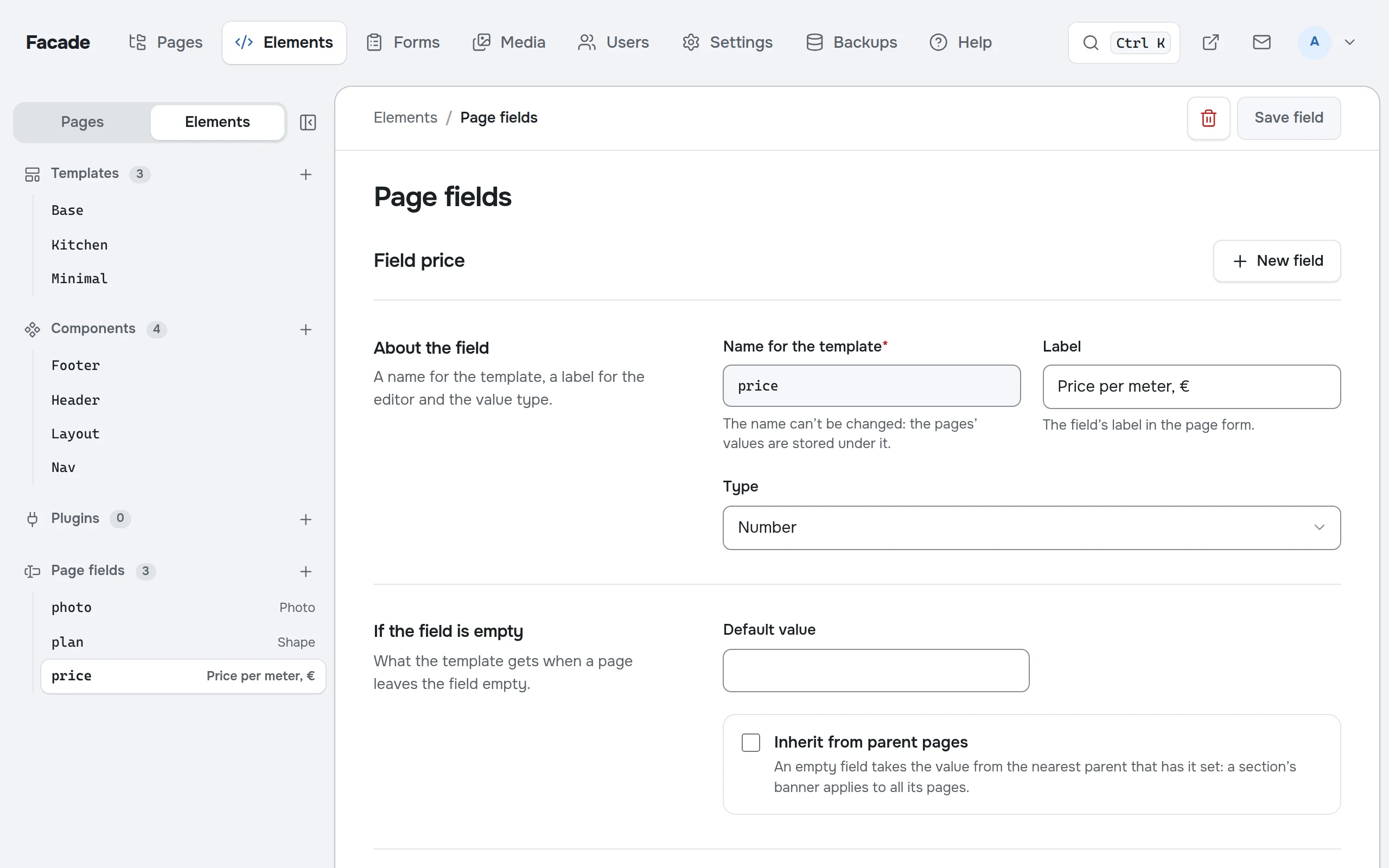
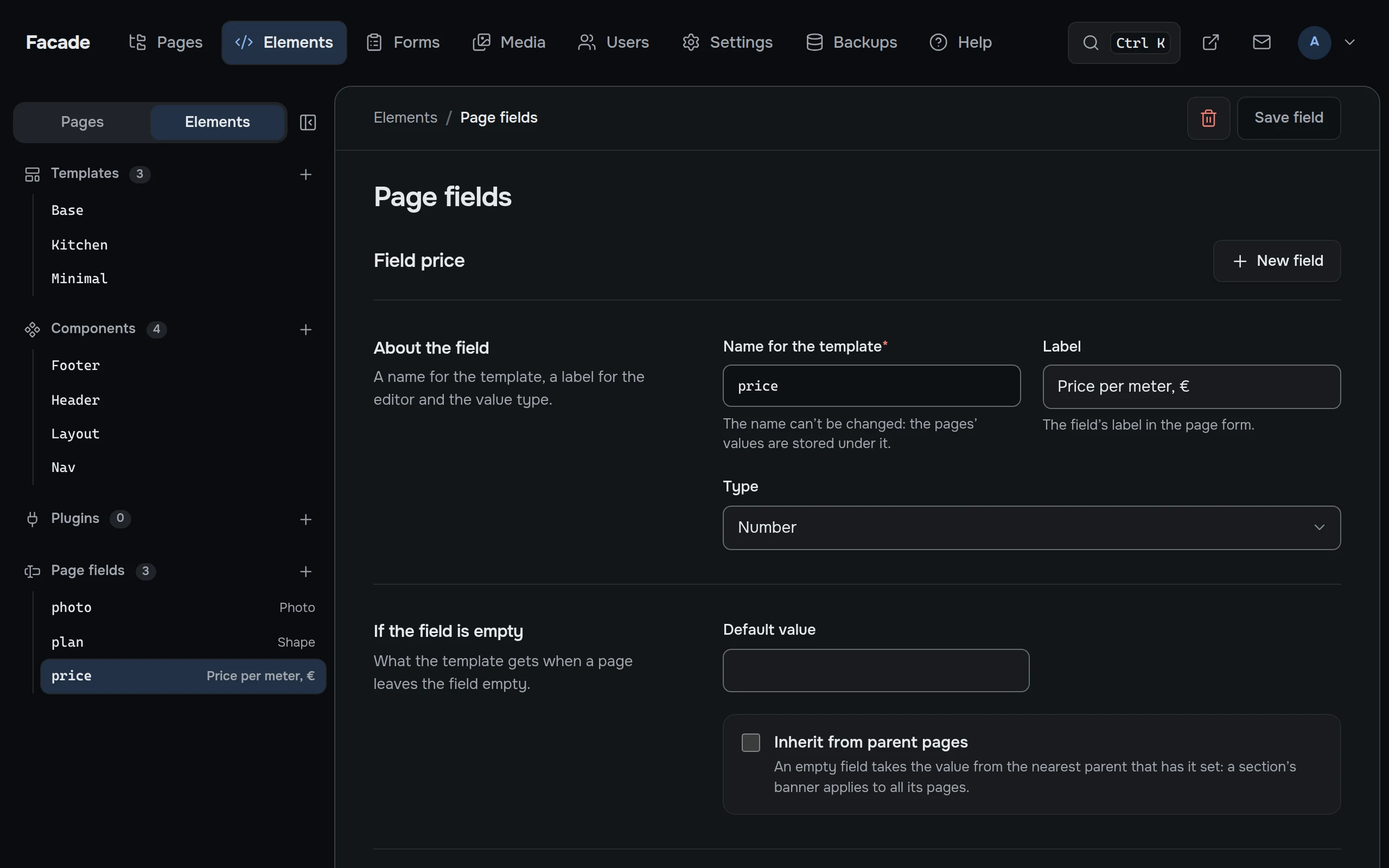
On the Elements tab, click + next to the words “Page fields”. Fill in the form for the price:
- Label: “Price per meter, €”. This is how the field is labeled in the page editor.
- Name for the template:
price. Use Latin letters; this is the exact name inpage.fields.price. - Type: Number.
- Templates: check
Kitchen.
Click Save field. Add two more fields the same way, also for the Kitchen template:
- “Shape”, name
plan, type Choice from a list, with the options separated by commas: “Straight, L-shaped, U-shaped”; - “Photo”, name
photo, type Image.
Photos in the media library
Open Media and drag the kitchen photos there. Shots from the showroom will do, or renderings from the program you design projects in. Name the folder kitchens: the upload bar has a folder field, and the manager remembers it.
Click an uploaded image. In the file card, write a one-sentence description: “Straight kitchen with olive Shaker doors and a light countertop”. A blind visitor’s screen reader will read it out, and the Kitchen template puts it into alt.
Eile makes smaller copies at 480, 960 and 1920 pixels by itself. These are the copies that go into srcset.
Kitchens inside Catalog
Hover over Catalog in the tree and click +: the new page goes straight inside it. Switch its template to Kitchen, or there won’t be a fields tab.
- Title: “Olive”. The address fills itself in:
olive. - In the Place on the site block, choose the
Kitchentemplate. - Write a couple of sentences about the kitchen.
- Open the Fields tab: price 1200, shape “Straight”, and pick the photo from the media library.
- Save and publish.
Create “Cashmere” (straight, €1,450 per meter) and “Sage” (L-shaped, €1,650 per meter) the same way. The second and third kitchens get the Kitchen template on their own, because a new page takes its neighbors’ template.